3D Architectural Animation
Harness the power of Twinmotion for fast, photorealistic architectural animation. This course bridges the gap between CAD/BIM models and high-quality cinematic flythroughs, allowing you to showcase your projects with stunning environmental context and dynamic lighting.
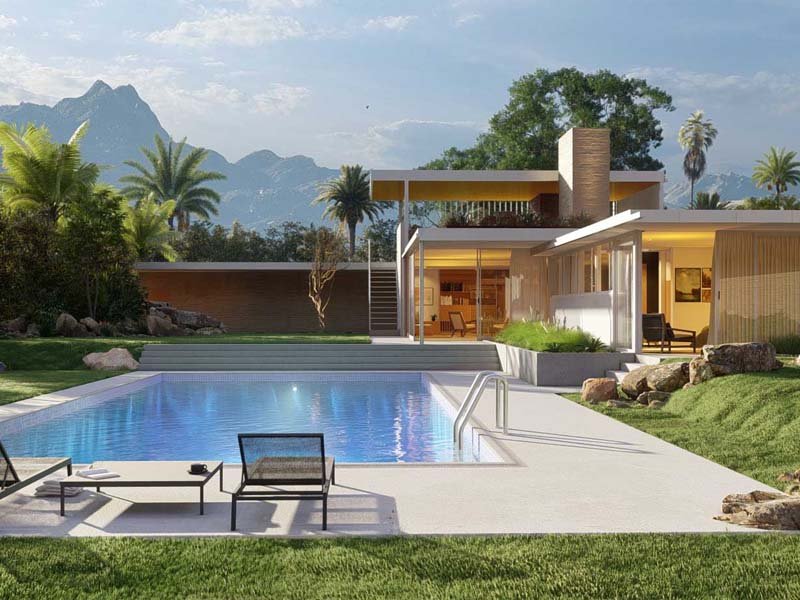
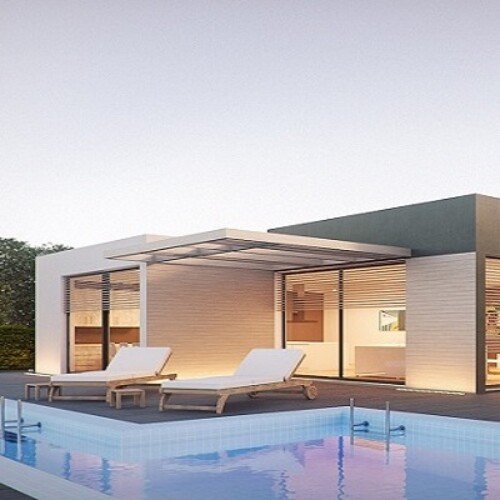
Animate your first architectural model in our intensive 2-week course
Designed for aspiring architectural visualisers, this intensive two-week course on Seed LMS guides you step-by-step through Twinmotion and modern AI workflows. You will develop the essential skills of real-time rendering, environmental lighting, PBR material application, and cinematic camera movement while building a professional architectural animation pipeline. Beyond the core two weeks, you’ll receive a full month of free, one-on-one mentorship to polish your final animations, troubleshoot your renders in real-time, and confidently build your visualisation portfolio. Choose from our curated pool of 10 exciting architectural briefs, refine your skills, and graduate with photorealistic, portfolio-ready video walkthroughs.
Course Outline
Week 1: Import, Context & Atmosphere
Topic A: The Direct Link (Datasmith)
- Workflow: Installing the Datasmith plugin in Revit.
- Syncing: Using “Direct Link” to update the Revit model changes inside Twinmotion instantly.
- Interface Tour: The Library, Scenegraph, and Properties panel.
- Navigation: WASD movement and speed control (Walk vs. Fly mode).
Topic B: Materials & Decals (PBR)
- Material Library: Replacing Revit’s basic textures with Twinmotion’s PBR (Physically Based Rendering) materials.
- Customisation: Adjusting Grunge, Weathering, and Reflection.
- Decals: Adding realism by placing dirt stains, road markings, and manhole covers on surfaces.
Topic C: Environment & Lighting
- Dynamic Weather: Creating rain, snow, and wet surfaces with a slider.
- Global Illumination (Lumen): Understanding the difference between Standard and Path Tracer rendering.
- HDRI Skydomes: Using high-dynamic-range images for realistic background lighting.
- Vegetation Paint: Rapidly planting forests and gardens using the “Paint Terrain” tool.
Week 2: Animation, Media & AI Workflow
Topic A: Living Architecture (Crowds & Traffic)
- Paths: Creating animated paths for Vehicles and Pedestrians.
- Character Library: Placing posed humans and animated groups.
- Custom Paths: Animating bespoke objects (e.g., opening sliding gates or flying birds).
Topic B: Phasing & BIM Motion
- Phasing Tool: Animating the construction process (Foundation -> Structure -> Façade).
- BIM Motion: Exporting a standalone executable file that allows clients to walk through the building on their own computer (like a video game).
Topic C: Cinematography & AI Integration
- Camera Keyframing: Setting up smooth “Walkthrough” and “Flyover” shots.
- Focal Lengths: Using 18mm for interiors and 35mm-50mm for exteriors.
- Innovative AI Workflow (Using Gemini):
- The Scriptwriter: Using Gemini to write a voiceover script for the architectural walkthrough.
- Prompt Example: “Write a 30-second luxury real estate voiceover script for a modern beachfront villa. Focus on the ‘indoor-outdoor living’ aspect.”
- Texture Generation: Describing a specific, unique material to Gemini to find similar PBR maps or generate prompt ideas for texture AI tools.
- The Scriptwriter: Using Gemini to write a voiceover script for the architectural walkthrough.
Mentorship & Portfolio Polish
After two weeks of core instruction, students enter a free 1-month mentorship delivered online via Discord. This phase shifts the focus from learning new tools to applying them to industry standards.
- Project Polish & Portfolio Building: Finish or redo your 2 required projects. High-quality submissions ensure better scores and a stronger portfolio.
- Weekly 1-on-1 Sessions: Each student is assigned a dedicated mentor for a personalised 30 to 60-minute weekly guidance session.
- Open File Reviews: Present open project files via live screen sharing for direct mentor critiques and feedback.
- Live Debugging: Join dedicated livestreams where instructors actively troubleshoot settings and fix your project errors in real-time.
- Final Premiere: Submit your fully rendered images or video for the Virtual Viewing Party to watch and critique final reels with the class.
- Certification & Next Steps: Complete the course evaluation and submit all final polished projects to finalise grading and unlock your Certificate of Completion.
